License Management

With a PlagAware license, all employees of an organization can use PlagAware together. Plagiarism checks against texts from other users of the same organization are also possible if the license is configured accordingly.
The license models of PlagAware
The most important facts at a glance
- check The license manager can coordinate the use of PlagAware within an organization.
- check The license manager can define how users can register and which texts may be shared between users.
- check Sub-licenses can be used to reflect different requirements across departments of the organization.
- check With a welcome message, the license manager can distribute notices to all users.
PlagAware offers two different license models: the volume license for companies and the teaching license for schools and universities. Apart from how ScanCredits are billed, both license models offer the same functionality. In particular, both licenses allow plagiarism checks to be carried out against a shared body of text (the “library”) and enable user and settings management.
Each license is supervised by a license manager who coordinates the use of PlagAware in the organization.
The license manager is usually also the first point of contact for all questions arising from operating PlagAware. To this end, the license manager can view plagiarism checks by users, retrieve usage statistics, and restrict the use of PlagAware.
For larger organizations, sub-licenses can be set up to reflect different areas of use and different requirements within the organization.
Displaying the license options
The license manager can monitor the use of PlagAware under the menu item “License” and view and edit details about the license settings.
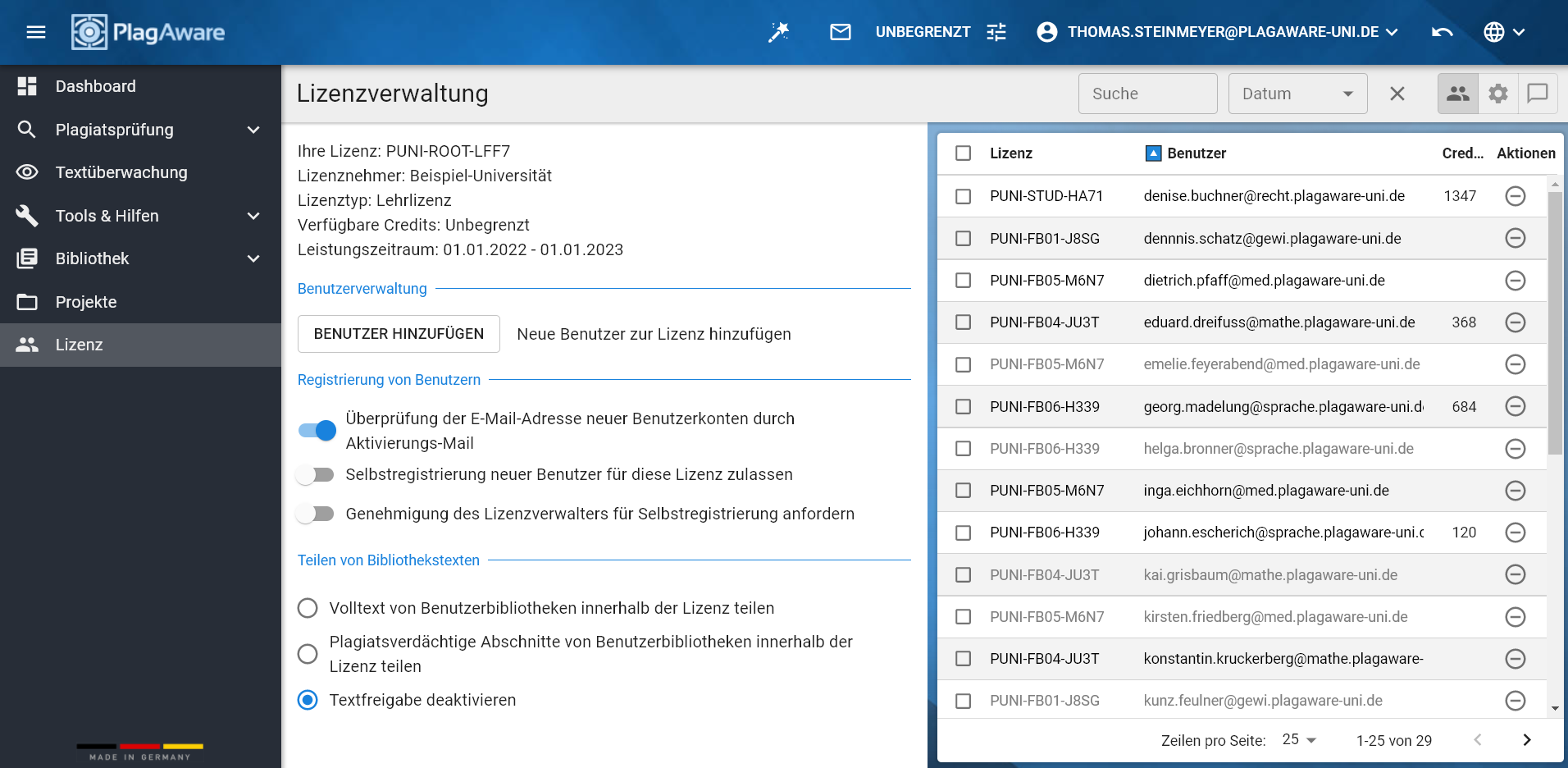 Managing a volume or teaching license
All options for managing a volume or teaching license can be found under the menu item “License”. This menu item is only visible to license managers.
The license management view is split into two parts. The left side shows general information about the license, such as the license code, the license type, remaining ScanCredits, and the service period. Depending on the license type, these details may vary.
 The right half of the screen displays further details about your license. You can choose between an overview of the users of your license (user icon), contract details and sub-licenses (gear icon), or an optional welcome message for new license users (speech bubble icon).
User management
Adding new users
 As the manager of a license, you can add new users to your license. To do so, click the Add user button. In the dialog box, you can then paste a list of the e-mail addresses of the new users. If you manage more than one license, you can optionally specify the license code to which the new user should be added.
Tip: New users do not need to be added manually
New users do not have to be added manually. Instead, you can allow self-registration so that new users can sign up independently using the license key.
New users are inactive
After you have added users to your license, the new user accounts are initially inactive. You can identify inactive user accounts by their gray font in the user overview. Inactive user accounts are activated as soon as the new user registers for the first time with their e-mail address. When the new user creates their account, entering the license key is not required. If they do enter a license key, however, it must match the one previously assigned.
Likewise, no approval request is sent to the license manager, even if that option is enabled (see below).
What to do if the user is already registered?
If a user account already exists, it cannot be linked to the license this way. In that case, you must pass the license key to the user and have them link their account to the license via their user profile. Otherwise, there would be a risk that third-party accounts could be added to an existing license without the user’s consent.
Removing users from the license
To remove users from the license, click the “ban” icon on the right in the user management view.
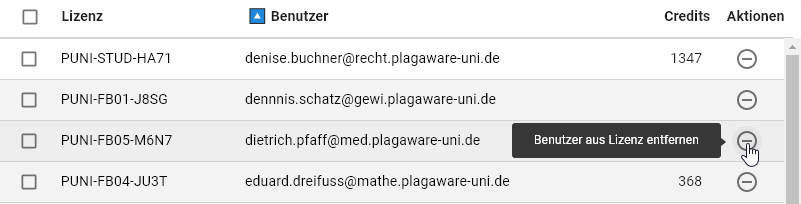
Depending on the status of the user account, removing a user from the license is handled differently:
- check Active user account – If the user account has already been activated, only the connection between the account and the license is severed. The user account itself remains fully intact, including all performed checks and library texts. However, no new checks can be carried out against the license.
- check Inactive user account – If the new user has not yet registered in the system, the corresponding user account is removed from the system entirely.
User registration options
The user management options are also found on the left side of the license management view. The following options are available:

- check E-mail address verification – When this option is enabled, the e-mail address of every new user is verified when they register. This is done by sending an activation e-mail to the new user containing a four-digit code that must be entered to confirm the e-mail address. This prevents users with invalid e-mail addresses from registering. Unless there are compelling reasons not to, this option should always be enabled. It prevents misuse of PlagAware and your license by third parties and guards against typos in e-mail addresses.
- check Self-registration of new users – This option allows users to register with PlagAware independently. It is not necessary to pre-register users in the system. Instead, you can send out the introductory document provided by PlagAware, which contains your license code. By entering the license code, new users identify themselves as members of your license.
- check License manager approval – If you have enabled self-registration, you can optionally decide to approve new sign-ups to your license. As soon as a new user uses your license key, an approval process is initiated. You will receive an e-mail in which you must consent to the use of your license. The user can only use your license after consent has been given.
Sharing library texts
When using PlagAware with a volume or teaching license, users can run plagiarism checks against the text collections of other users of the same license (or sub-licenses, see below). The license manager can decide whether and to what extent texts may be shared with other users of the license.

Note: Libraries are not shared across license boundaries
For data protection reasons, PlagAware does not support sharing texts with third parties. All settings apply exclusively to libraries of users within a license or within sub-licenses of a license.
- checkShare full text – Texts in the libraries of users of this license can be used for plagiarism checks by other users of the same license (or sub-licenses). When a match is found, the complete library text can be displayed in the comparison view. Additionally, properties of the library text such as its original filename and the e-mail address of the uploading user can be viewed.
- checkMatching passages only (default setting) – Texts in the libraries of users of this license can be used for plagiarism checks by other users of the same license (or sub-licenses). When a match is found, however, only the matching (suspected plagiarism) passages are displayed in the comparison view. Depending on the search engine settings, the suspected passages may differ slightly from the checked text. Outside the comparison view, the library text cannot be displayed; further information about the text such as the original filename and the uploading user’s e-mail address is also not accessible.
- check Disable text sharing – The shared use of library texts is disabled entirely. Texts in the libraries of users of this license cannot be used for plagiarism checks by other users of the same license (or sub-licenses).
Usage statistics
As the license manager, you can track exactly how PlagAware is being adopted and used within your organization. The right side of the screen shows an overview of the users of your license and all sub-licenses you manage.
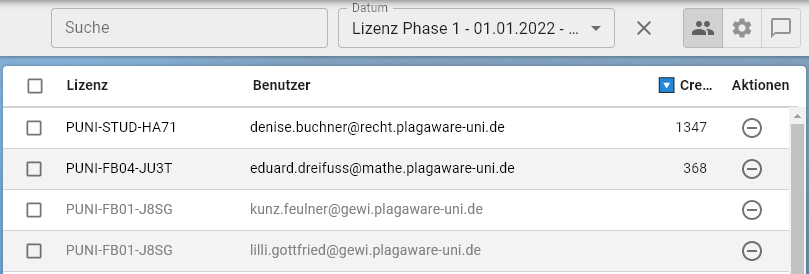
The user list also serves to remove individual users from your license. You can filter the user list by e-mail address and by license code, as well as by usage period.
Note: Restrictions for sub-licenses
In PlagAware, sub-licenses can be created for different usage models within an organization. If you are the manager of a sub-license, some or all of the settings described here may be disabled because they are specified by the manager of the main license. In this case, a corresponding notice is displayed.
If you want to set up sub-licenses yourself, please contact PlagAware Support.
Contract management and license phases
 Click the “gear” icon to display the contract management and sub-license details. This view is only available to managers of a main license, not to managers of sub-licenses.
Renewal of volume licenses
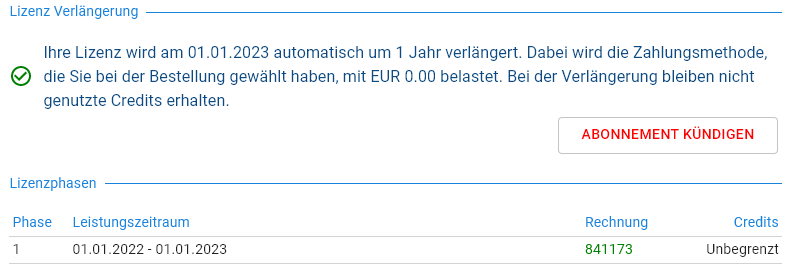
Unless you have agreed on different terms, volume subscriptions are automatically renewed at the end of the contract period. You can cancel the automatic renewal at any time by clicking the “Cancel subscription” button. Cancelled subscriptions can be reactivated at any time via the “Activate subscription” button.
Unused credits are retained
When a volume license is renewed, all unused credits are retained and carried over to the next contract phase. If you cancel the contract, all ScanCredits of the subscription are forfeited.
What happens if the credits are not sufficient?
If the ScanCredits included in the subscription are not sufficient, you can renew your existing subscription early at any time. Your account will be topped up with the agreed ScanCredits, and the new usage period begins from the time of the top-up.
Tip: Automatic early renewal
To ensure that you always have sufficient ScanCredits in your account, you can set up an automatic early renewal. As soon as your balance falls below a previously defined minimum level, an early renewal of your subscription is triggered automatically and your account is recharged.
Please contact PlagAware Support to set up an automatic early renewal.
Renewal of teaching licenses
Teaching licenses are generally renewed automatically 30 days before the license expires. Here too, you have the option to disable or enable automatic renewal in the license management.
Sub-licenses
Sub-licenses are used to reflect different areas and usage conditions within an organization. For example, it is possible to set up separate licenses for university departments and for student self-checking.
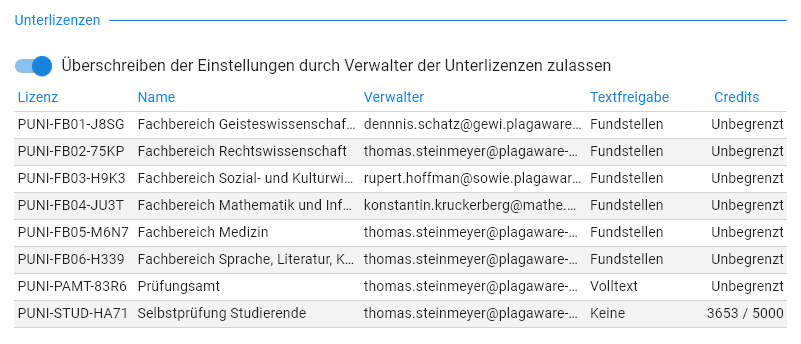
Sharing texts across sub-licenses
For each sub-license, you can define whether and how texts are shared within the licenses. When texts are shared across different sub-licenses, the more restrictive setting always applies. Some examples based on the sub-licenses shown above:
- checkDepartments – All texts from all departments and the examination office are shared with each other. However, only the suspected plagiarism passages are viewable.
- checkExamination office – Users in the examination office can access the full texts of other users in the examination office. Texts from departments are used for checking, but only the matching passages are viewable.
- check Student self-checking – Students cannot share texts with each other or with any other area of the university.
Managers of sub-licenses
A dedicated license manager is assigned to each sub-license. The manager of the main license can define whether the settings regarding text sharing and user registration may be changed by the managers of the sub-licenses. If not, a corresponding message is displayed and the options are disabled.
Setting up quotas for sub-licenses
Optionally, you can set up a quota for a sub-license. This allows you to ensure that only a predefined number of plagiarism checks may be performed per sub-license.
Tip: Setting up and configuring sub-licenses via PlagAware Support
The creation and configuration of sub-licenses is currently only available via PlagAware Support. Please briefly describe the desired configuration and we will set it up promptly.
Setting up a welcome message
 If you want to pass on important information or current announcements to the users of your license, you can set up a welcome message. The welcome message is displayed to all users of your license and all sub-licenses, unless it has been explicitly overridden for a sub-license.
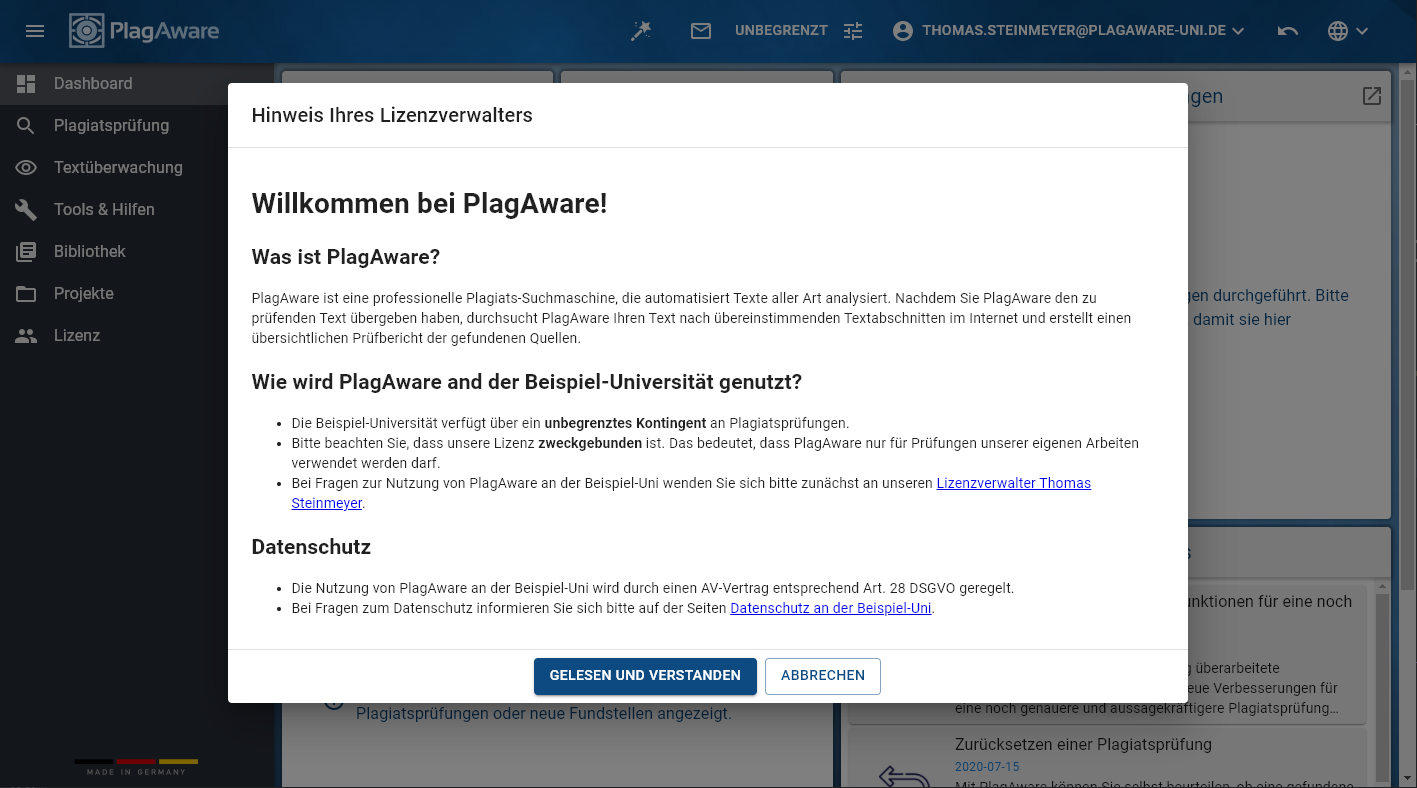 Displaying a welcome message
The welcome message is shown to all users of the license until they confirm it with “Read and understood”.
The message is shown to users until they explicitly confirm it with the “Read and understood” button. As the license manager, you can reset the read confirmation for all users, causing the message to be displayed again.
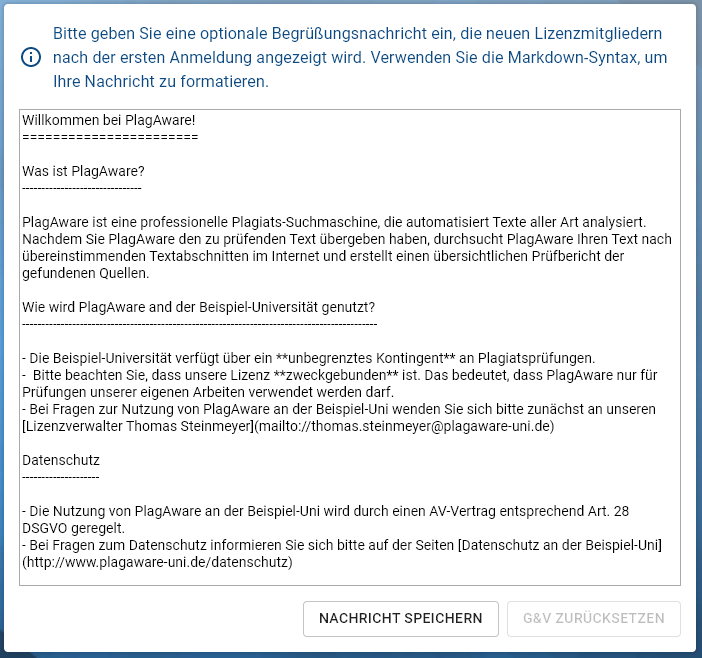
You can format your welcome message using Markdown syntax. Markdown provides basic formatting elements such as headings, paragraphs, images, and links.
Setting up a welcome message is optional. However, the feature can help you use PlagAware in accordance with your organization’s guidelines on data and system usage.
License manager access to reports and library texts
By default, every user can only see their own plagiarism reports and library texts. As the license manager, you can enable two additional access rights in the license settings to view content created by any user in your license:
- check Access to all plagiarism reports – You can view the plagiarism reports of all users in the license.
- check Access to all library texts – You can view the library texts of all users in the license.
Both options are disabled by default and can be switched on and off directly in the license administration.
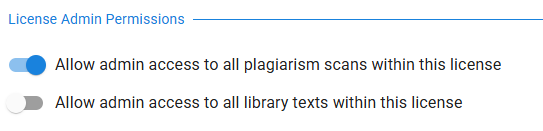
Viewing other users' reports
 Once you have enabled the access right for plagiarism reports in the license settings, an additional toggle labelled “License reports” appears in the filter bar of the report overview. This toggle is only visible for the license manager account.
Activate the toggle to display reports from all users in your license. An additional Owner input field appears so you can filter the list by the report owner’s e-mail address. Turn the toggle off to return to your own reports only – the owner filter is cleared automatically.
Viewing other users' library texts
Likewise, a toggle labelled “License texts” appears in the library overview once you have enabled the access right for library texts in the license settings. Activate it to view all library texts in the license. Here too, you can filter the list by the owner’s e-mail address if needed.
Notes on sub-licenses
If your organization uses a main license with sub-licenses, the following applies:
- check The manager of the main license has scope over all sub-licenses – but only sees content from sub-licenses where the respective access right has also been enabled in that sub-license’s settings.
- check Access rights are not automatically inherited by sub-licenses. Each sub-license must be configured separately in its own settings.
- check The manager of a sub-license can only access content within their own sub-license – not the main license or other sub-licenses.
Privacy note
Let your users know that their content can be viewed by the license manager when this feature is enabled. Use the owner filter to limit your view to only the content relevant to your administrative task.